
Module detail

Podcast Companion

Go from a live source link to a multilingual audience experience with real-time transcript and public access.

Paste a YouTube stream or other source link, create the session, auto-detect or set the source language, start low-latency transcription, share the public page, and keep an archive when the session ends.

Start by pasting a YouTube URL; the title is fetched automatically and a new podcast companion session is created.Choose the source language or use auto-detect, then start streaming transcription with low latency.Monitor messages, status, connection, capture source, and session details from one live control view.
English walkthrough 2:08

See the full Podcast Companion flow from link creation to live audience access

This walkthrough shows how Podcast Companion handles live digital content: create a session from a YouTube link, choose or auto-detect the source language, start real-time transcription, and let the audience follow the podcast in their own language.

Watch on YouTube
How mosque teams use this module

Podcast Companion

Use Podcast Companion when you want to turn a live stream or linked podcast into a multilingual audience experience: paste the source link, set or auto-detect the source language, start live transcription, share the public page, and keep the finished session archived.
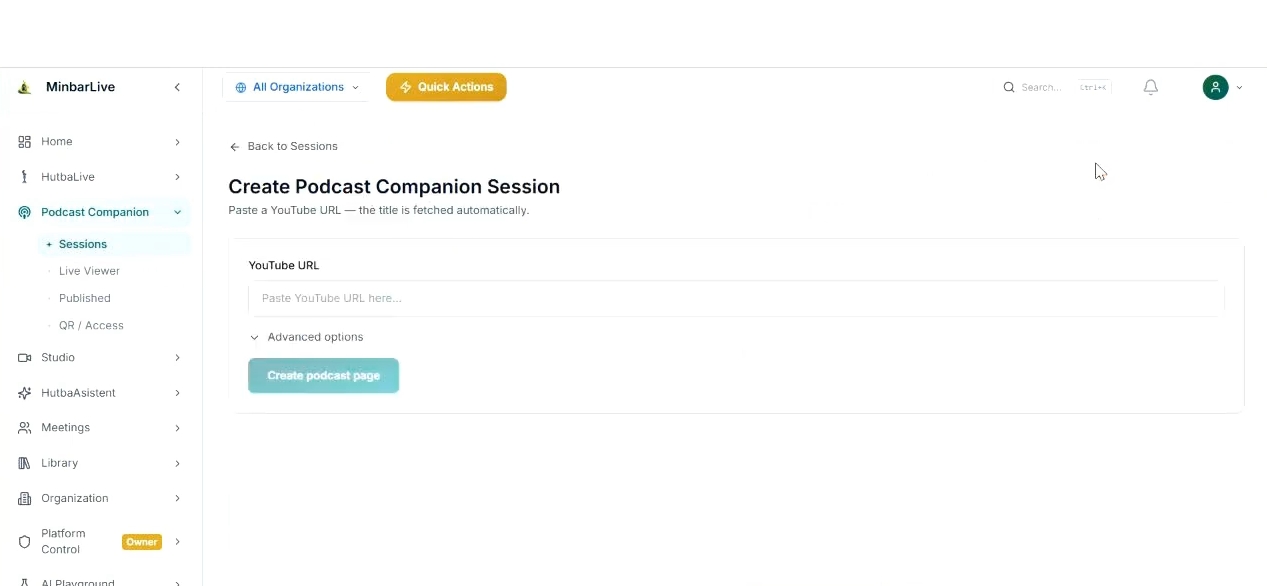
Podcast Companion session creation screen with YouTube URL field, advanced options, and create podcast page button.
Create

Create a session from a YouTube link in a few clicks
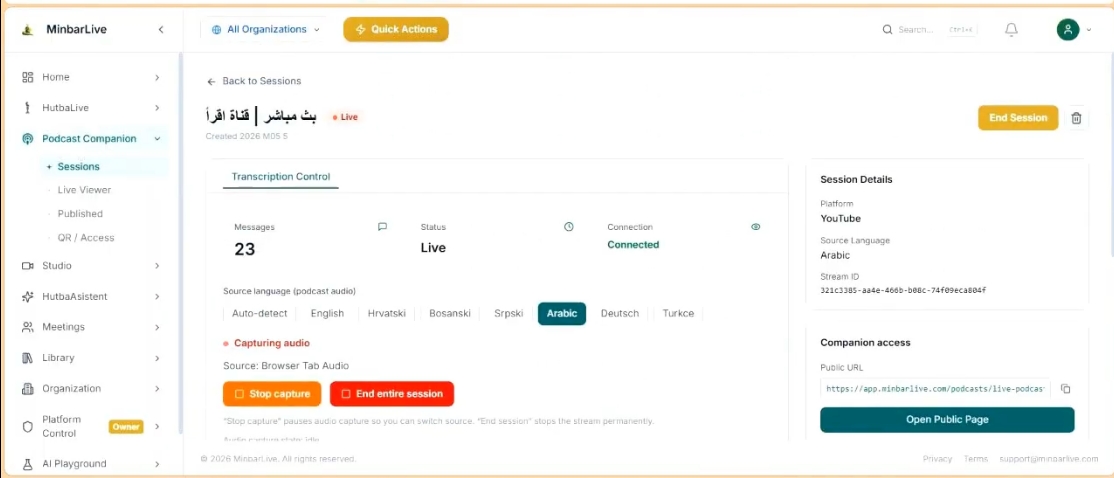
Podcast Companion live session screen with transcription controls, language options, session details, and public page access.
Live

Manage transcription, language, and public access during the session

What this walkthrough shows

What this walkthrough shows

The English demo walks through the exact workflow a mosque or media team needs: create the session from a source link, configure the source language, start streaming transcription, monitor the live control view, and share a public multilingual companion page with the audience.

  • Start by pasting a YouTube URL; the title is fetched automatically and a new podcast companion session is created.
  • Choose the source language or use auto-detect, then start streaming transcription with low latency.
  • Monitor messages, status, connection, capture source, and session details from one live control view.
  • Share the public page so listeners can join and follow the translated podcast in real time, then keep the session archived afterward.
Podcast Companion session creation screen with YouTube URL field, advanced options, and create podcast page button.
Create

Create a session from a YouTube link in a few clicks

Paste the YouTube URL, let the title populate automatically, open advanced options if needed, and create the podcast page without a long setup flow.

Podcast Companion live session screen with transcription controls, language options, session details, and public page access.
Live

Manage transcription, language, and public access during the session

Once the session is live, the team can monitor transcription, confirm the source language, track connection status, and open the public companion page for listeners around the world.

Podcast Companion is built for more conversational formats — interviews, panels, lectures, and live events. When the session ends, the archive remains available for review, publishing, and later reuse.

Want to show this workflow to your community or team?

Open the app, try the live workflow, or continue exploring the rest of the MinbarLive modules.