
Module detail

Quality Dashboard

Run AI quality review on completed sessions to spot STT and translation issues, approve fixes faster, and measure improvement over time.

Choose a finished session, launch AI analysis, review correction suggestions, accept or reject fixes, move approved items into your dictionary, and keep both simple review and technical reports available for future sessions.

Pick a finished session and start AI analysis in one click.Receive actionable suggestions for words or translations that should be corrected.Review outcomes by status: pending review, accepted, rejected, and in dictionary.
English walkthrough ~1 min

See the full Quality Dashboard flow from completed session to accepted improvements

This walkthrough shows how Quality Dashboard makes post-session quality control practical: select a finished session, trigger AI analysis, receive suggestions for transcript or translation fixes, and track what gets reviewed, accepted, rejected, or moved into the dictionary.

Watch on YouTube
How mosque teams use this module

Quality Dashboard

Use Quality Dashboard after a session when you want AI to review translation and transcription quality for you: run analysis on completed sessions, process suggested fixes, move approved terms into your dictionary, and keep a measurable improvement loop for future sessions.
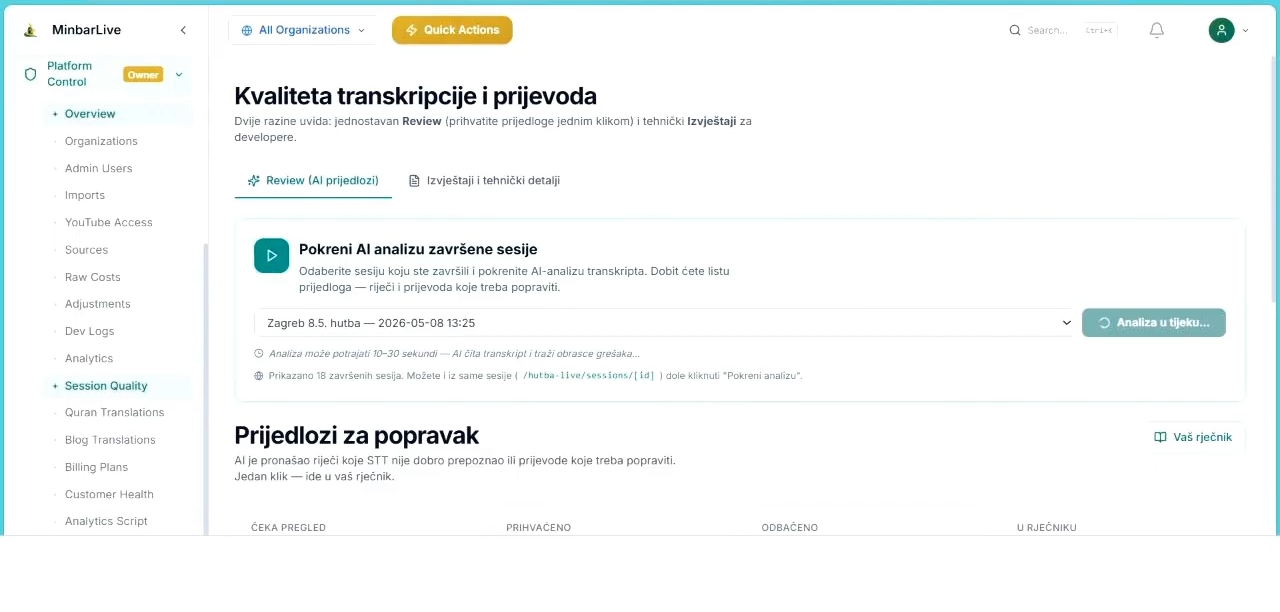
Quality Dashboard review screen with run analysis button and session selector.
Review

Start AI quality analysis for completed sessions without heavy manual work
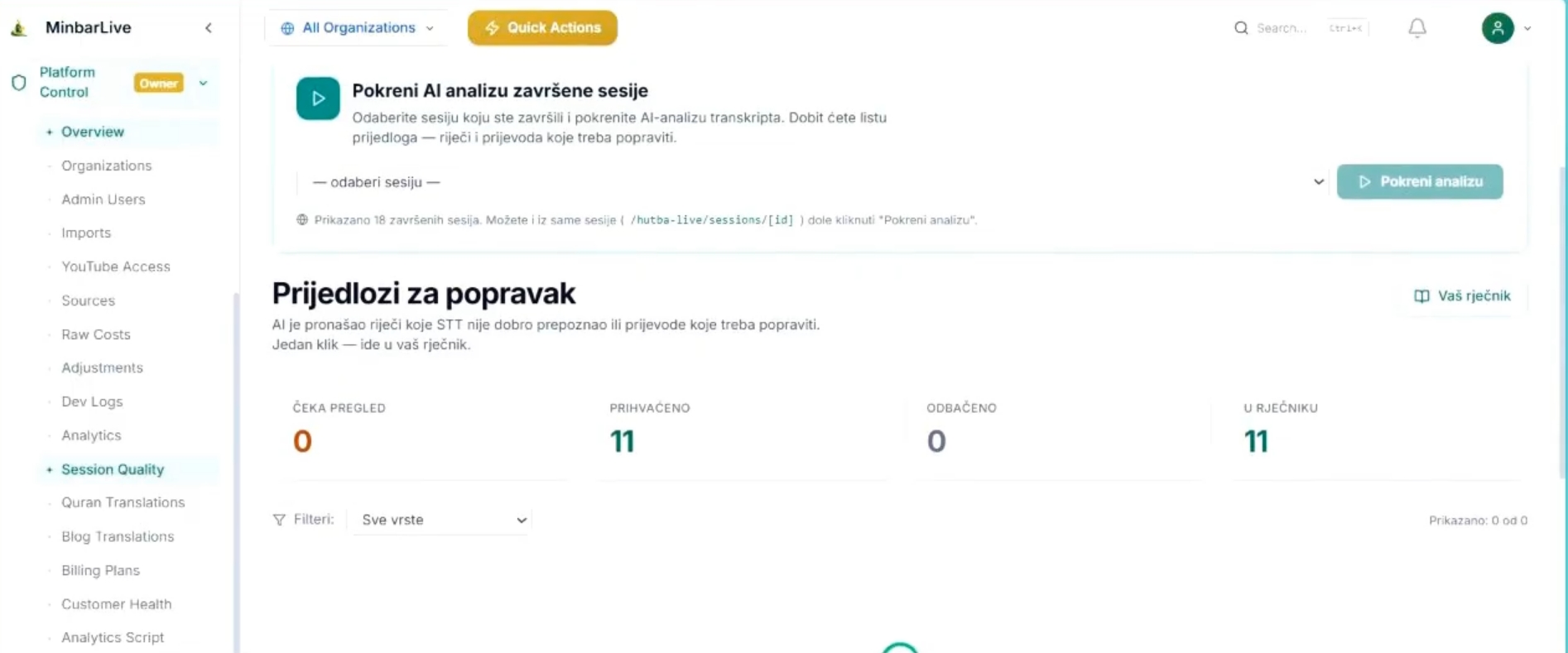
Quality Dashboard page with review tabs, accepted and dictionary counters, and AI analysis controls.
Overview

Track suggestion outcomes and keep accepted terms flowing into your dictionary

What this walkthrough shows

What this walkthrough shows

The English demo follows the exact workflow an owner or super admin needs: open the quality module, launch AI review on a completed session, inspect the suggestions queue, and use both human-friendly review and technical reports to steadily improve translation and transcription quality.

  • Pick a finished session and start AI analysis in one click.
  • Receive actionable suggestions for words or translations that should be corrected.
  • Review outcomes by status: pending review, accepted, rejected, and in dictionary.
  • Keep both simple review and technical reporting available to improve future transcription and translation quality.
Quality Dashboard review screen with run analysis button and session selector.
Review

Start AI quality analysis for completed sessions without heavy manual work

The review screen lets the owner or super admin choose a finished session, run AI analysis, and immediately start surfacing suggestions for transcript or translation fixes.

Quality Dashboard page with review tabs, accepted and dictionary counters, and AI analysis controls.
Overview

Track suggestion outcomes and keep accepted terms flowing into your dictionary

The overview brings together review mode, technical reporting, session selection, and clear counters for accepted, rejected, pending, and dictionary-backed improvements.

Quality Dashboard is designed to be lightweight for end users. Teams only need completed sessions; then the owner or super admin can trigger AI analysis and turn accepted improvements into a reusable quality loop for future sessions.

Want to show this workflow to your community or team?

Open the app, try the live workflow, or continue exploring the rest of the MinbarLive modules.